
When someone says, “The internet is slow,” a speed test is usually the first tool to appear. That makes sense. It is quick, familiar, and produces numbers that look reassuringly precise.
The trouble starts when those numbers are treated as a verdict.
A speed test cannot grade your entire internet connection. It measures how well one device exchanges test traffic with one server, over one path, under the conditions that exist during that run. The result is a snapshot—not a diagnosis, a service guarantee, or a certificate of network virtue.
That does not make speed tests useless. It makes them useful in a specific way: they are comparison tools.
If you want to follow along, run the MakeTheInternetGo speed test. It measures latency, download, and upload between this browser and the Cloudflare edge serving the test. For a deeper explanation of each number, read what a speed test actually measures.
The useful question is not “Is my internet fast?”
“Fast” is doing too much work in that question.
A connection can have plenty of download throughput and still feel awful during a video call. A laptop can test slowly over Wi-Fi while the service reaching the router is healthy. One website can crawl even though a nearby test server looks excellent. Latency, packet loss, delay variation, wireless conditions, server performance, and network paths can all matter independently of peak Mbps.
The better question is:
What changed when I changed one condition?
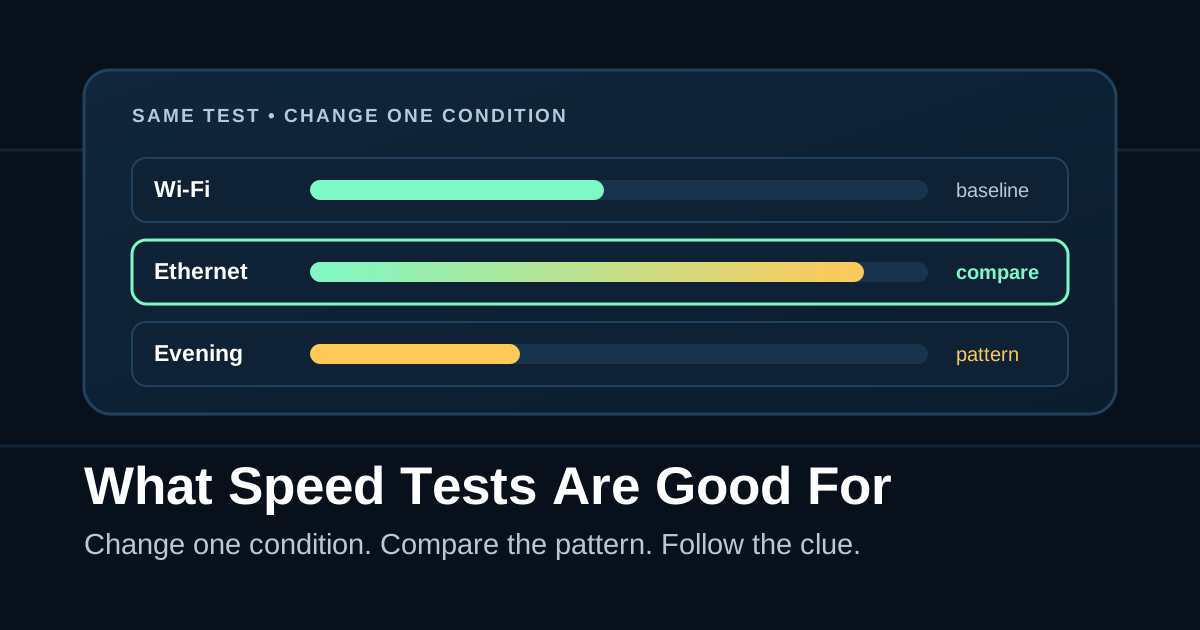
That is where a speed test becomes genuinely useful. Run the same test from the same device, then change one variable: connect by Ethernet, move closer to the access point, disable a VPN when policy allows, pause a backup, or test again at another time. The difference between the runs often tells you more than either result by itself.
The Federal Communications Commission’s broadband measurement methodology makes the scope explicit: a throughput test measures the path between its client and target. Its web-browsing test uses actual websites separately because website performance includes other systems and paths (FCC technical appendix). That distinction is the heart of using speed tests well.
What a speed test is good for
Establishing a baseline
A baseline is a record of what “normal” looks like for a particular setup. Run the same test from the same device under ordinary conditions and keep the result with the date, time, connection type, and VPN state.
When the connection feels wrong later, repeat the test under the same conditions. A large, repeatable change gives you evidence that something in the measured path or test environment changed. A single number without a baseline only tells you what happened once.
Comparing Wi-Fi with Ethernet
Run a test over Wi-Fi, then connect the same device to the router with Ethernet and repeat it. If the wired result is consistently stronger, the local wireless link is involved. Distance, interference, shared airtime, device radio capability, or access-point placement may be limiting the Wi-Fi run.
That comparison does not identify the exact wireless problem, but it narrows the investigation. Troubleshooting is often less about finding the answer immediately and more about removing entire categories of wrong answers.
Comparing locations and devices
Run the same test from two rooms. Then run it from two devices in the same room.
If performance changes by location, investigate Wi-Fi coverage or interference. If one device is consistently slower in the same place, investigate that device, its radio connection, browser, power settings, security software, or current workload. If every device slows down together, look farther upstream.
Testing the effect of a VPN
A VPN can change the route and destination through which traffic travels. Comparing the same test with the VPN on and off—when your organization’s policy permits it—can show whether the VPN path is part of the symptom.
It cannot tell you whether the VPN software, the VPN gateway, the route to that gateway, or a policy behind it is responsible. It can tell you whether the problem follows that condition. That is still a useful cut.
Finding time-of-day patterns
Run the same test at several times while keeping the device and connection type consistent. If results repeatedly fall during the same hours, you have a pattern worth investigating. The cause could be activity inside the home, demand elsewhere on the provider network, or another time-dependent condition, but now you have something better than “it was slow last night.”
Creating a useful support record
Support conversations improve when you can provide repeated results with context:
- Date and time
- Device and operating system
- Wi-Fi or Ethernet
- Room or access point
- VPN state
- Test service and server or edge
- Download, upload, and latency
- What else was using the connection
This record does not prove who is at fault. It gives the next person evidence they can reason about and, ideally, reproduce.
What a speed test is not good for
Proving that one website is healthy
A healthy result to a test server says very little about a slow store, streaming service, game server, or company application. That destination may use another route, content delivery network, region, protocol, database, or overloaded backend.
If one service is slow while everything else works, test that service’s path and behavior. Do not acquit it because a different server delivered an impressive number. Mbps has many admirable qualities, but cross-examination is not one of them.
Explaining every bad call or game
Real-time applications care about more than throughput. Round-trip delay, delay variation—usually called jitter—packet loss, and latency while the connection is busy can matter even when download speed is high. The IETF treats delay, delay variation, loss, and bandwidth-related measurements as distinct performance metrics (RFC 9439).
Some speed-test services measure these additional signals. Some do not. Cloudflare’s broader network-quality model, for example, considers latency, packet loss, loaded latency, jitter, download, and upload rather than treating throughput alone as a complete picture (Cloudflare AIM). Check what your chosen tool actually reports before using it to answer a real-time performance question.
The MakeTheInternetGo test currently reports unloaded browser-to-edge latency, download, and upload. It does not measure packet loss, jitter, or latency under load.
Measuring Wi-Fi coverage for the whole building
A test from one device in one room describes that device’s current path. It does not describe the spare bedroom, the back porch, or the conference room where the access point is hidden behind several ambitious concrete walls.
To evaluate coverage, repeat the same test in the places people actually use the network. Keep the device and test service consistent so location is the main variable.
Proving your service plan from one browser run
A low result deserves investigation, but one result does not prove that an internet provider is failing to deliver service. The device, Wi-Fi link, Ethernet port, browser, VPN, competing traffic, test server, and route can all constrain the run.
For a cleaner service-level comparison, use a capable wired device, pause avoidable traffic, repeat the test, document the setup, and follow the provider’s required testing procedure. Even then, describe exactly what you measured instead of turning one result into a larger claim than it supports.
Finding the root cause by itself
A speed test can reveal a symptom and help isolate a condition. It usually cannot name the failed component.
Suppose the wired result is strong and the Wi-Fi result is weak. You have learned that the problem is associated with the wireless path. You have not yet learned whether the cause is interference, distance, channel use, access-point placement, device capability, or a hardware fault. The test moved you up the troubleshooting ladder; it did not magically become the whole ladder.
Run the test like a small experiment
You do not need a lab coat. You do need a question.
- Write down the symptom. “Video calls freeze in the upstairs office after 7 p.m.” is useful. “Internet bad” is emotionally honest but diagnostically underfunded.
- Choose a test that measures the relevant signal. Throughput helps with large transfers. Calls and games may require latency, jitter, packet-loss, and loaded-latency measurements too.
- Record the conditions. Note the device, room, Wi-Fi or Ethernet, VPN state, time, test service, and server or edge.
- Repeat the baseline. Two or three runs help distinguish a repeatable pattern from one odd sample.
- Change one variable. Move closer, connect Ethernet, pause other traffic, change devices, or test at another time. Avoid changing everything at once.
- Compare patterns, not trophies. A high score is pleasant. A consistent difference between controlled runs is actionable.
Different tests can return different results without either being fraudulent. Measurement Lab describes its NDT test as a single-stream measurement of bulk-transport capacity, while other services use multiple streams, different transfer durations, and different server-selection methods (M-Lab NDT). Use the same test when comparing conditions, then use a second service when your question is whether the result follows the destination or methodology.
Match the test to the question
| Question | Useful comparison | What the result can tell you |
|---|---|---|
| Is Wi-Fi limiting this device? | Same device and test: Wi-Fi versus Ethernet | Whether the symptom follows the wireless path |
| Is one room worse? | Same device and test in two locations | Whether performance changes with location |
| Is the VPN involved? | Same device and test with VPN on and off | Whether the symptom follows the VPN condition |
| Is one device the outlier? | Same location and test on two devices | Whether the symptom follows the device |
| Is there a recurring busy period? | Same setup at several times | Whether a time-based pattern exists |
| Is one service the problem? | Speed test plus service-specific checks | Whether the general test path is healthy while the service still fails |
A good result can coexist with bad internet
This is the result that confuses people most: the speed test looks fine, but the internet still feels broken.
Believe both observations.
The test path may be healthy while DNS is slow, one application is overloaded, a route to another destination is poor, packet loss disrupts calls, or queues add delay under load. The right response is not to keep rerunning the same test until it confesses. Choose the next tool based on the symptom.
Use a DNS lookup when a name fails or resolves inconsistently. Measure packet loss and jitter when real-time traffic breaks up. Test the affected service when only that service is slow. Check the public IP and VPN route when location or network identity seems wrong.
A speed test is best at opening the investigation, narrowing it, and giving you comparable evidence. That is plenty. A screwdriver is not a worse tool because it cannot also be a multimeter.
The practical takeaway
Run a speed test when you have a specific comparison to make. Keep the tool, device, and server consistent. Record the conditions. Repeat the run. Change one variable. Then follow the pattern toward the next check.
If all you keep is the biggest Mbps number, you have a screenshot. If you keep the conditions and comparisons, you have troubleshooting evidence.